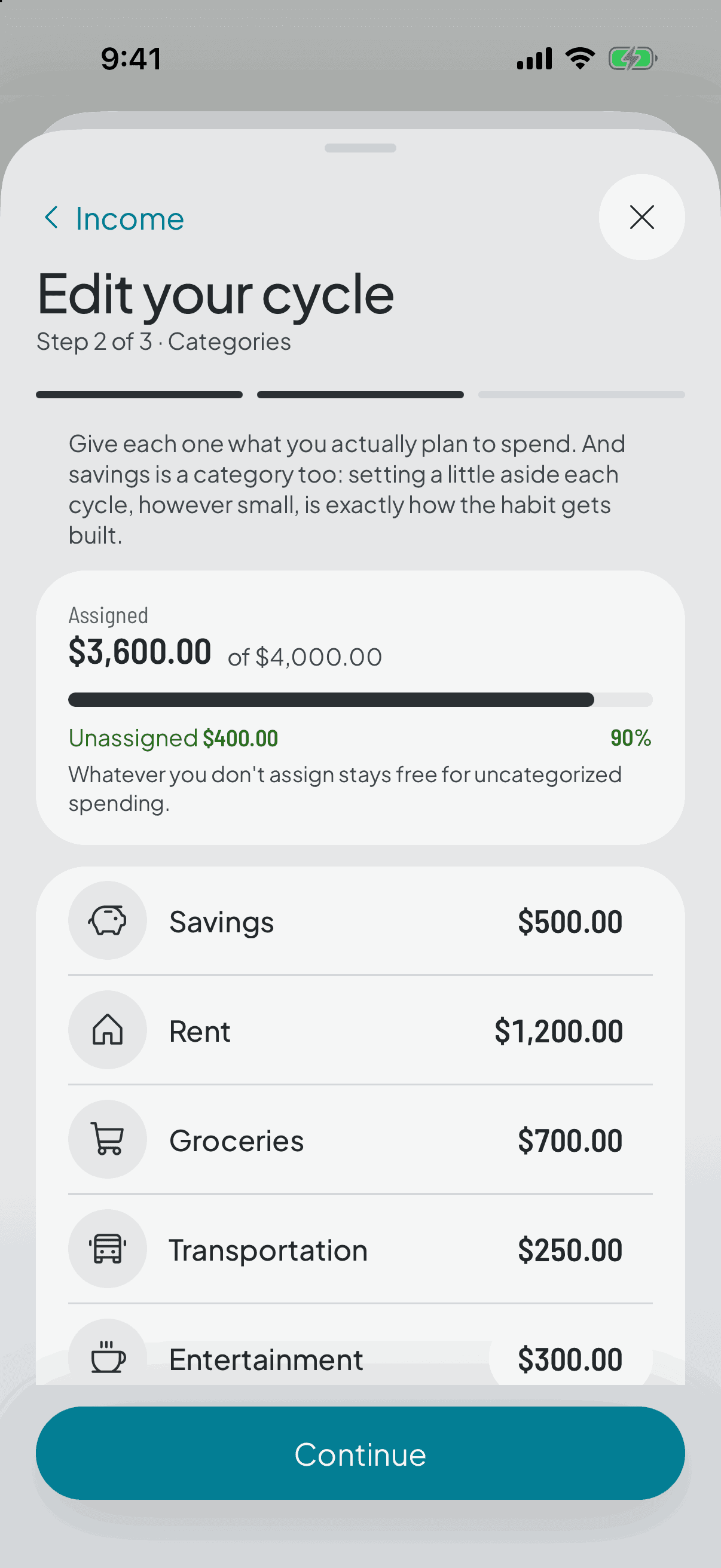
Setup
Adding a category without redoing the split
For when you spot mid-cycle that one's missing: you create it from the home screen, with its amount, and it joins the cycle you're already in.
- 1
The dashed square at the end
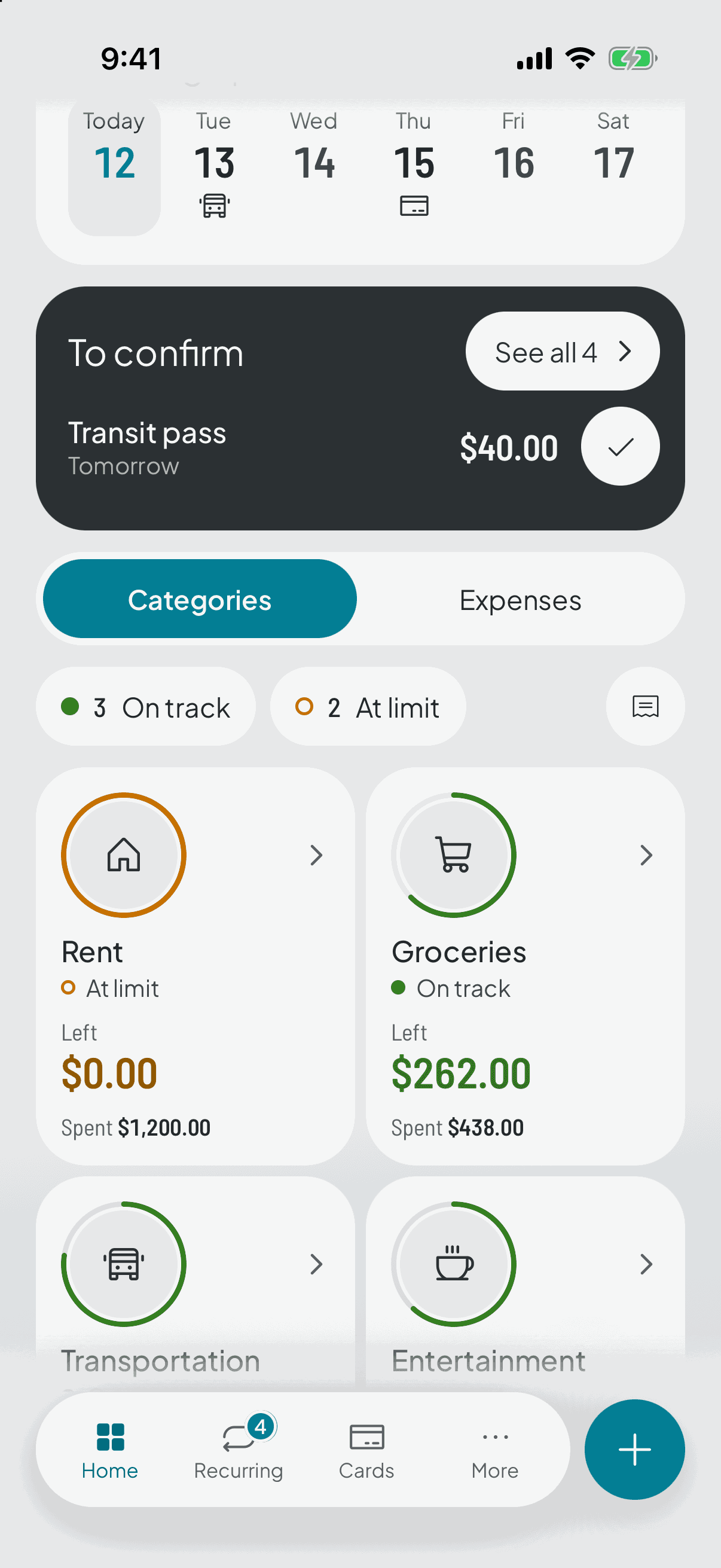
Mid-cycle you realise one's missing: the pet, the pharmacy, that expense that fits none of the categories you set up on day one.
You don't have to open the whole split for that. Scroll down to your categories on the home screen: at the end of the grid there's a dashed square with a +. That's where a single category comes from.
It only shows up while a cycle is open, because what you're creating is a category for this cycle, not a note for the next one.
- 2
Icon, name and amount
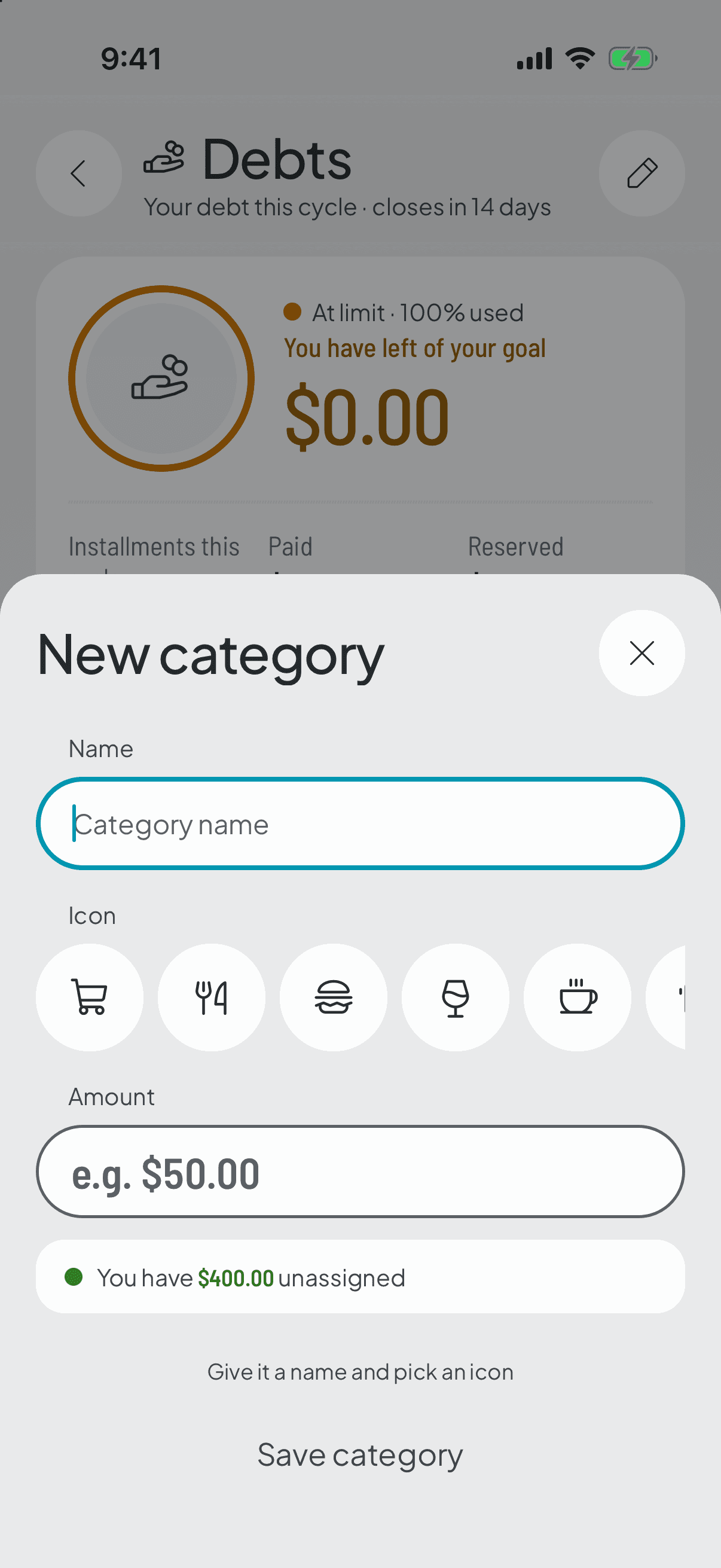
The same sheet you edit any category with opens up blank: you pick an icon from the list — it has a search box — type a name, and set how much money it's going to carry.
Next to the amount is the ceiling: what's left of your income once the other categories have taken their share. Go over it and the app doesn't scold you or grey out the button; it tells you, and trims the figure back to what was available.
It's born with its amount in the cycle you're in, not just the next one. Waiting for the next close would make it arrive late, which is exactly when it stops being useful.
- 3
How it differs from editing the split
This shortcut only adds. It doesn't reorder the others, doesn't archive anything and doesn't re-snapshot everyone else's targets: the rest of your cycle stays exactly as it was.
The category and its amount for this cycle are saved in one go, so there's no odd moment where it exists with nothing assigned to it.
If what you want is to move amounts between several categories, or drop one you no longer use, that's editing the split, and it has its own page in this guide. In the app you open it from Settings, in the first row under Your cycle: Cycle and budget. Or from a category you already have, with the pencil at the top right, which leaves you in the same place with that category already open.