Closing
Finding an expense
By description, category or amount, accents be damned. And with one promise: if there are matches outside your window, it tells you how many.
- 1
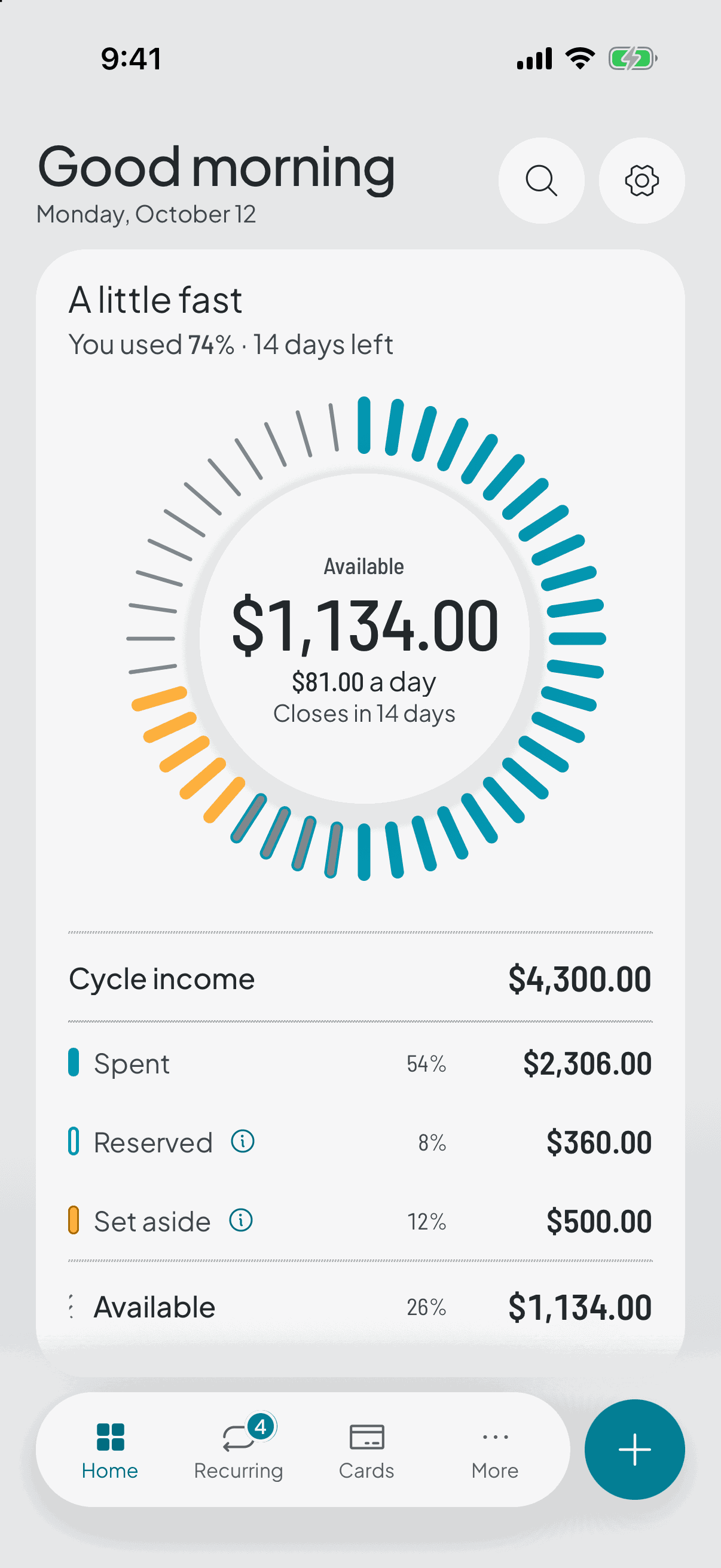
Where the magnifier lives
In the greeting on the home screen, and inside history. It's the same search from both places.
- 2
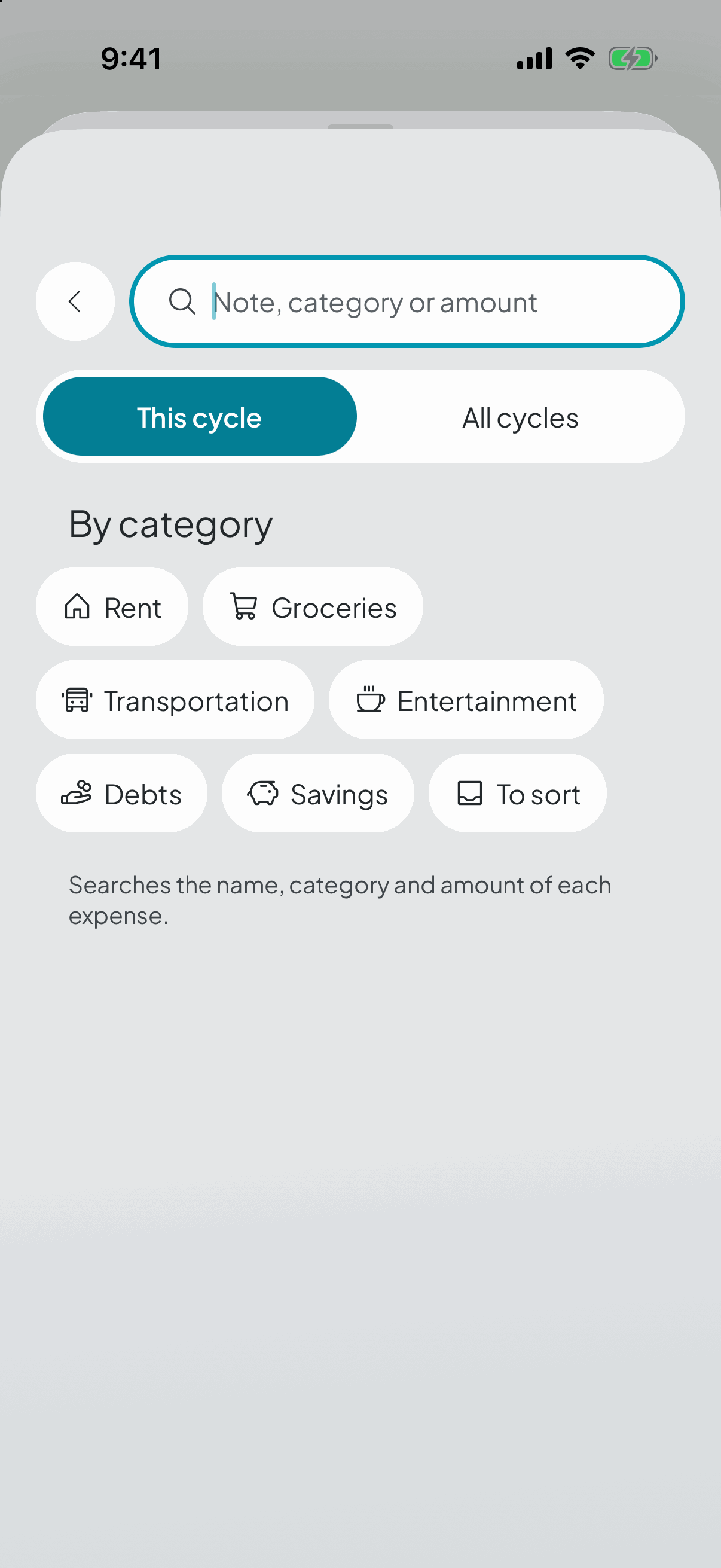
What you can type
The description («insurance»), a category name («groceries») or the amount («18000»). Accents and number formatting don't matter: searching «cafe» finds «café» and the other way round.
- 3
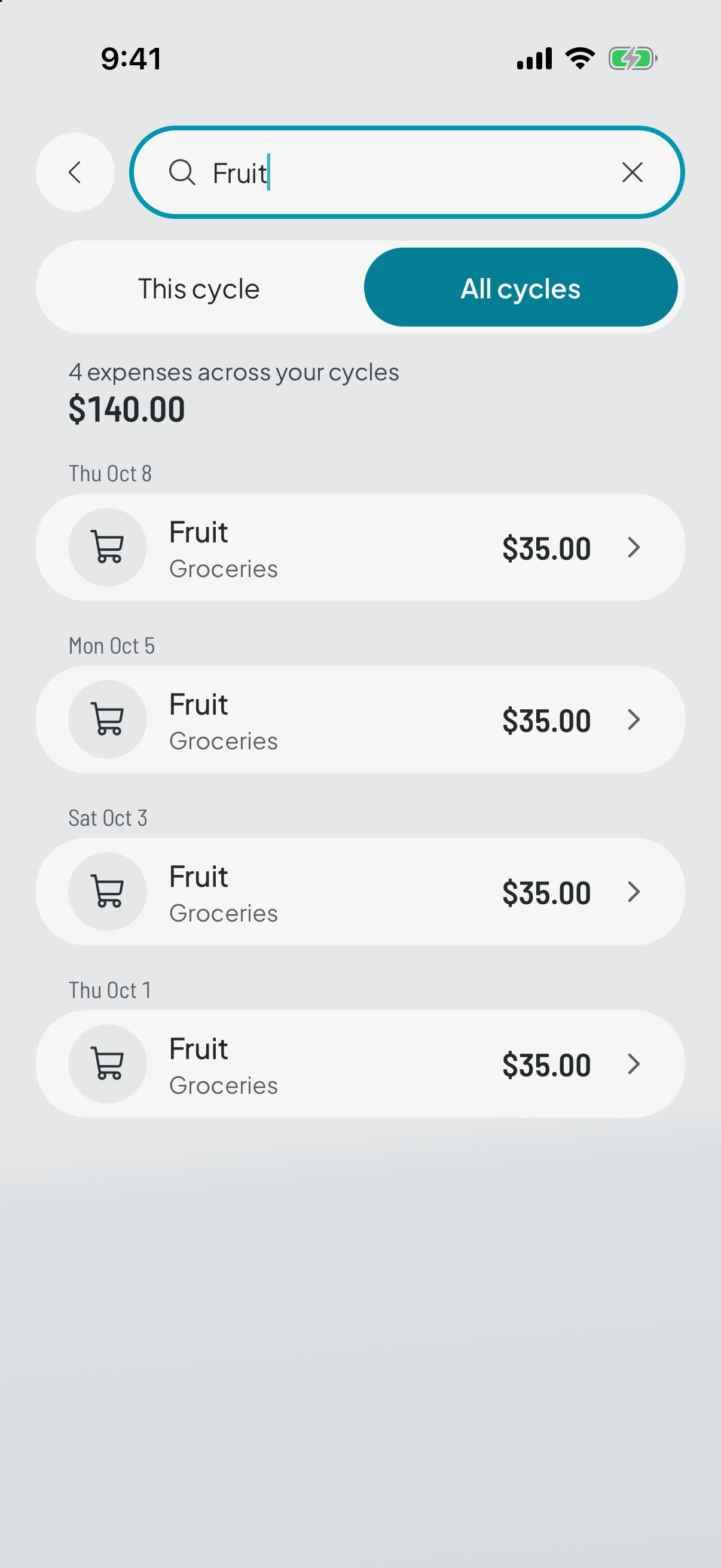
What comes back
Results are grouped by cycle, so you can see when each thing happened. If the expense is in the current cycle you can correct it right there; if it's in a closed one, it takes you to that frozen close.
- 4
The free plan's window
Free searches the active cycle plus the three most recent closed ones — the same window you see in history.
If there are matches further back, the app tells you how many instead of pretending they don't exist. Counting them is honesty; returning them would be giving away the paid part.