Day to day
Logging an unplanned expense
The spending that wasn't in the split: how to record it, what the app shows you before you save, and what happens if it puts a category in the red.
- 1
Log it, even though it wasn't in the split
An unplanned expense is the one you didn't see coming: the taxi in the downpour, the last-minute gift, the replacement part for your laptop.
The instinct is not to log it, because it breaks the split. It's the other way round: a split without that expense no longer describes your cycle, and from that moment the available figure is a pretty number you can't decide anything with.
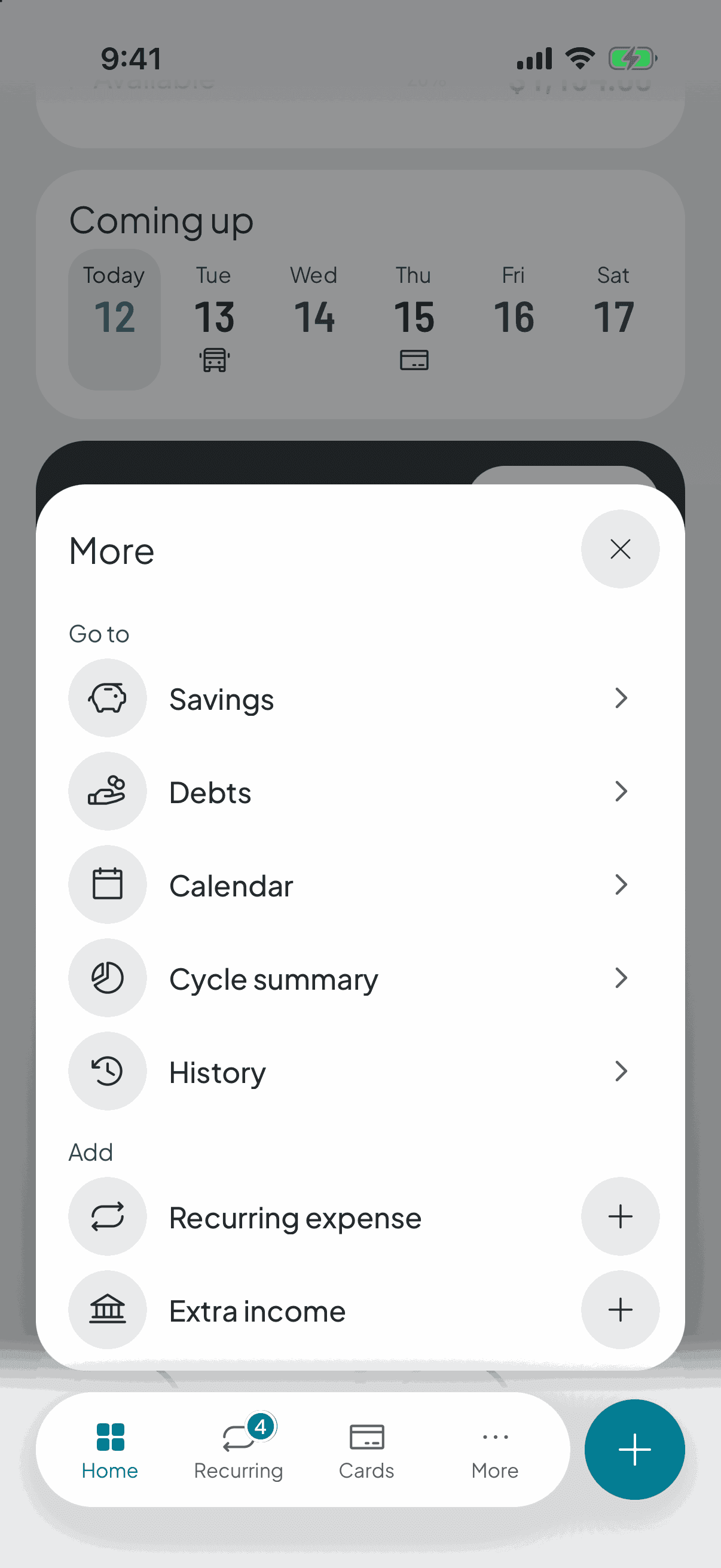
To log it, the + in the bottom bar opens three shortcuts — expense, recurring expense and extra income — and the first one opens the form wherever you are. You can also go in through the category: tap it on the home screen and use the + Add under Extra expenses, so the expense starts out already assigned to it.
- 2
The category can wait
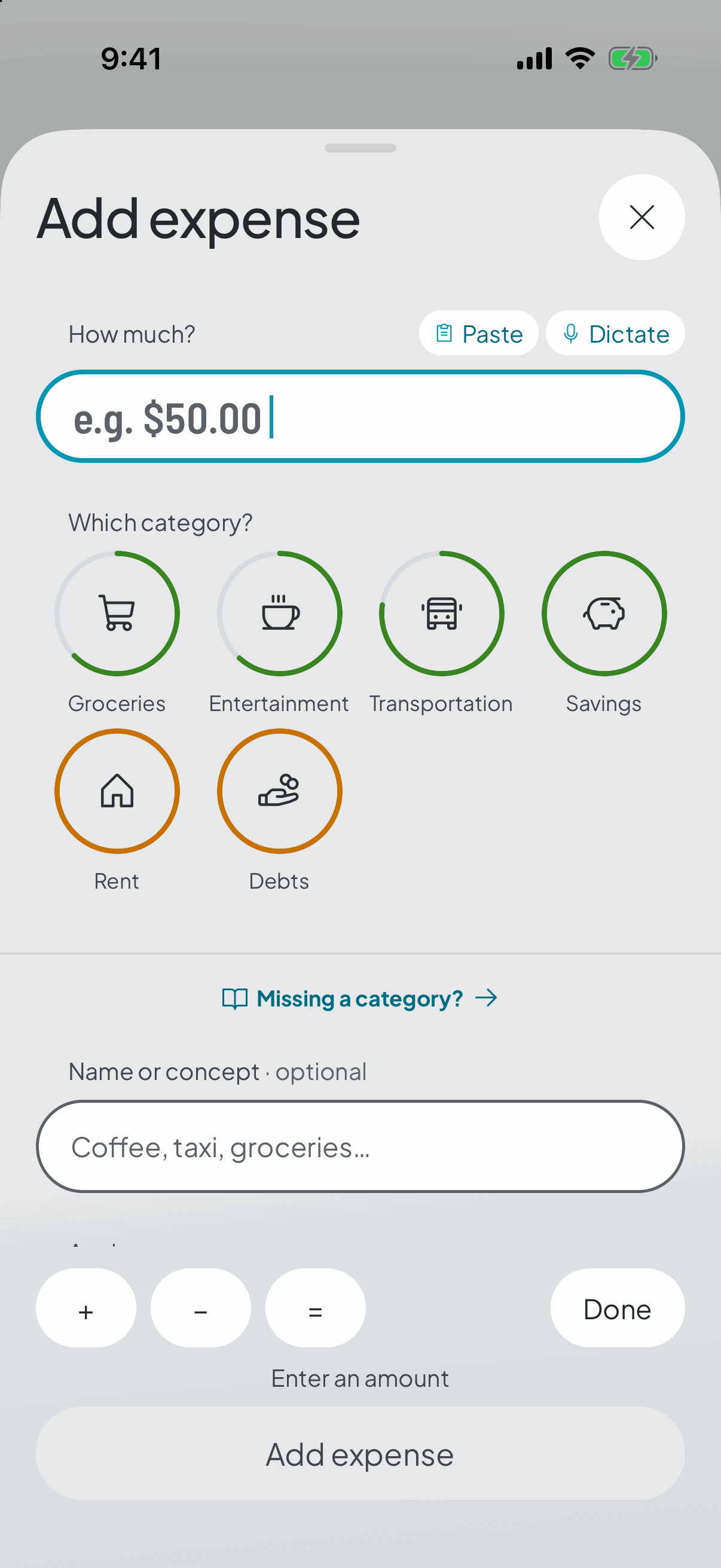
Choosing one stopped being compulsory: type the amount, save, and the expense lands in Unsorted until you feel like filing it. The one thing you always know as you spend is how much it was; the rest can wait, because the habit that matters is logging it.
What you leave unsorted still counts in your cycle — the money did leave your pocket — so your available figure and your pace are right from the first second. And the app doesn't scold you for it: Unsorted has no target, so it can never tell you that you went over it.
When you do want to file it, you don't need to invent a category for every surprise: it goes in the nearest one, or in whatever you deliberately left unassigned for exactly this.
At the close, the app tells you how many are still unsorted and takes you to them in one tap — but it doesn't force you. Watch that one: a closed cycle is never rewritten, so whatever went in unsorted stays that way.
And if the same kind of unplanned expense turns up three cycles running, it isn't unplanned any more — it's a category you were missing.
- 3
It tells you what will happen before you save
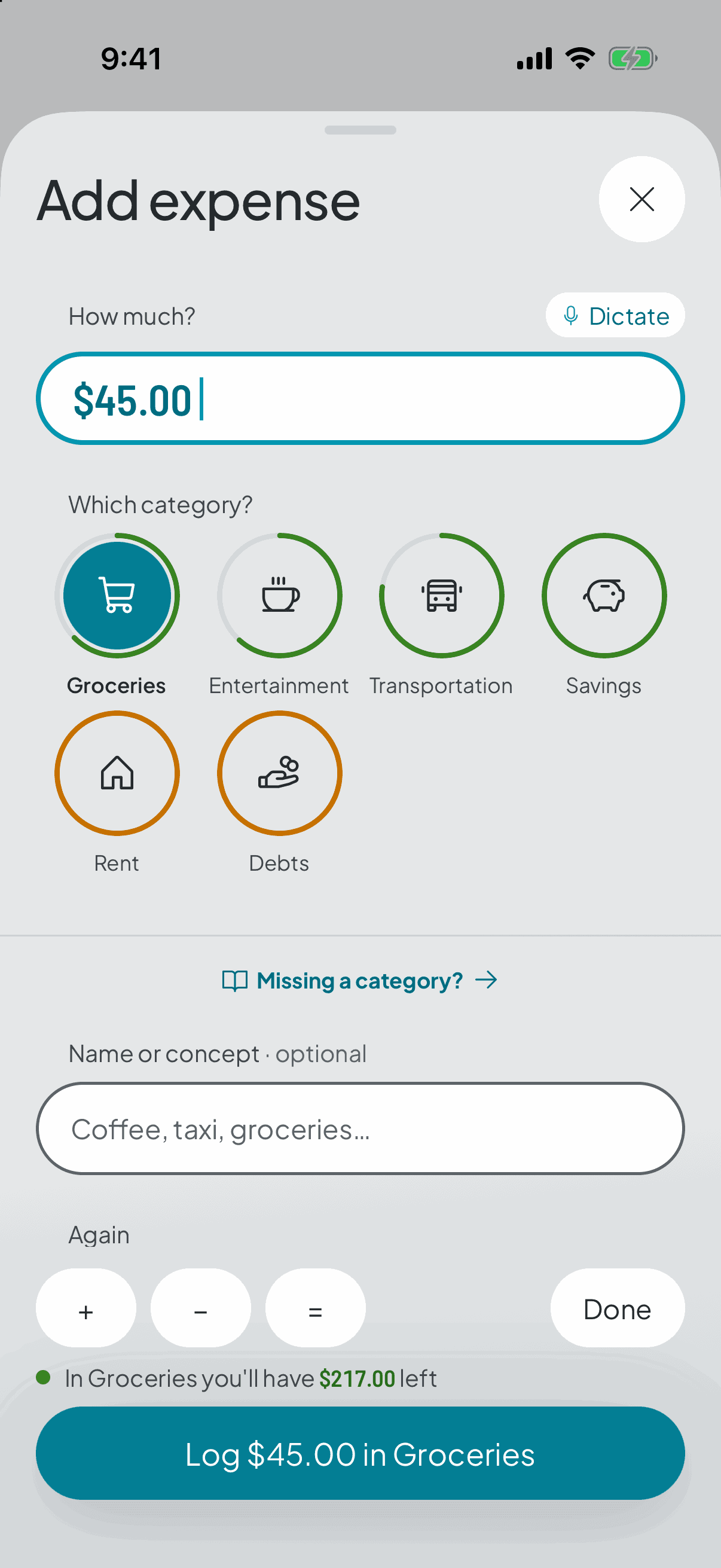
As you type the amount, the app already shows you the outcome: what would be left in that category, what would be left in the whole cycle, and how much a day that leaves you for the days still to come.
It also subtracts what's reserved for recurring expenses, so it never offers you money that already has an owner. It's information, not permission: you can close without saving.
- 4
If it isn't from today, change the date
Expenses are logged as today by default, which is what happens nearly every time, so there's nothing to tap. If you're catching up on a Sunday evening, switch it to yesterday or the day before.
Days that would fall in the previous cycle aren't even offered, and when the expense isn't from today the confirmation says so, in case it was heading for the wrong day.
- 5
And if it's one you log all the time
The bus, the coffee. Expenses you've already logged several times show up as shortcuts and fill the form in for you.
Inside a category there's something shorter still: «+ Again» duplicates it in a single tap, and gives you a few seconds to undo it in case your thumb slipped.
- 6
And what you logged is right there on the home screen
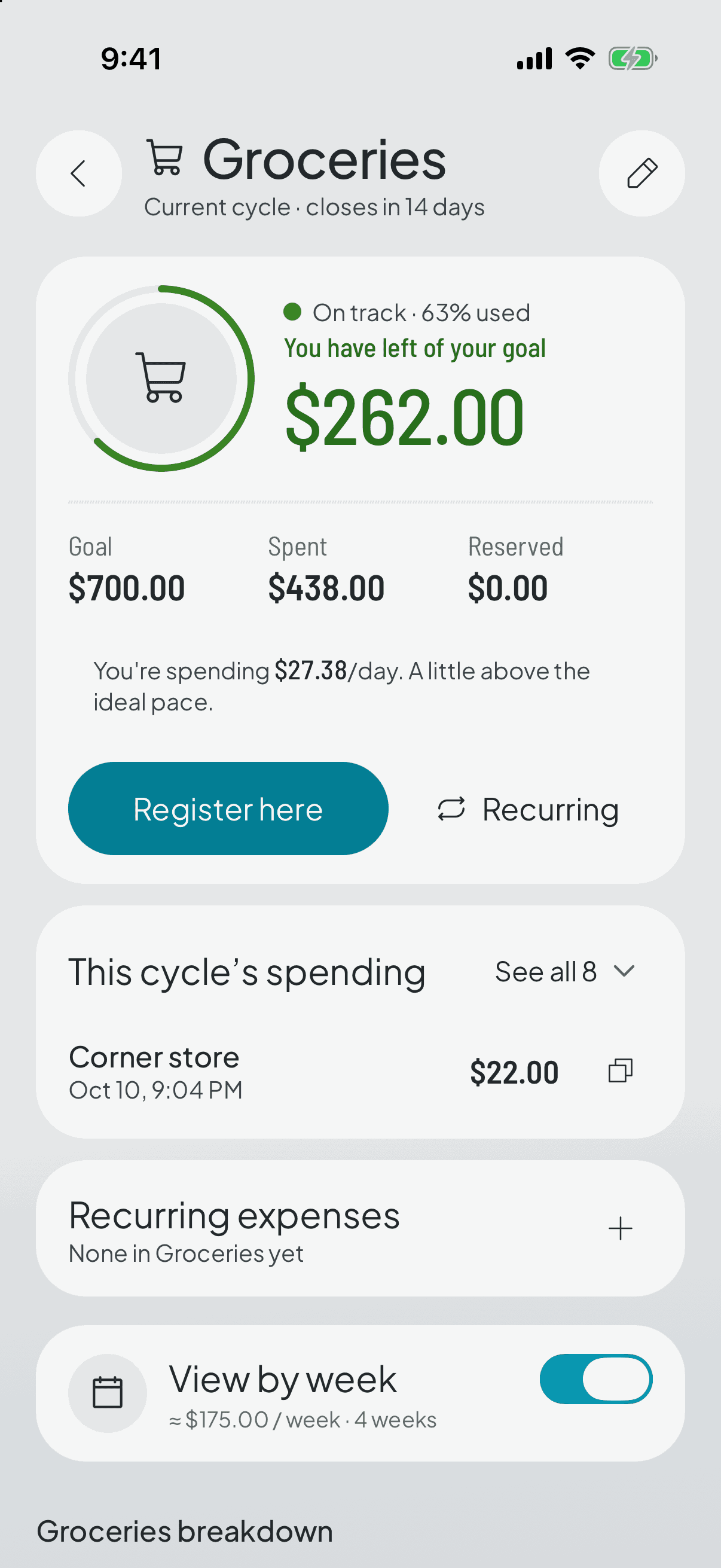
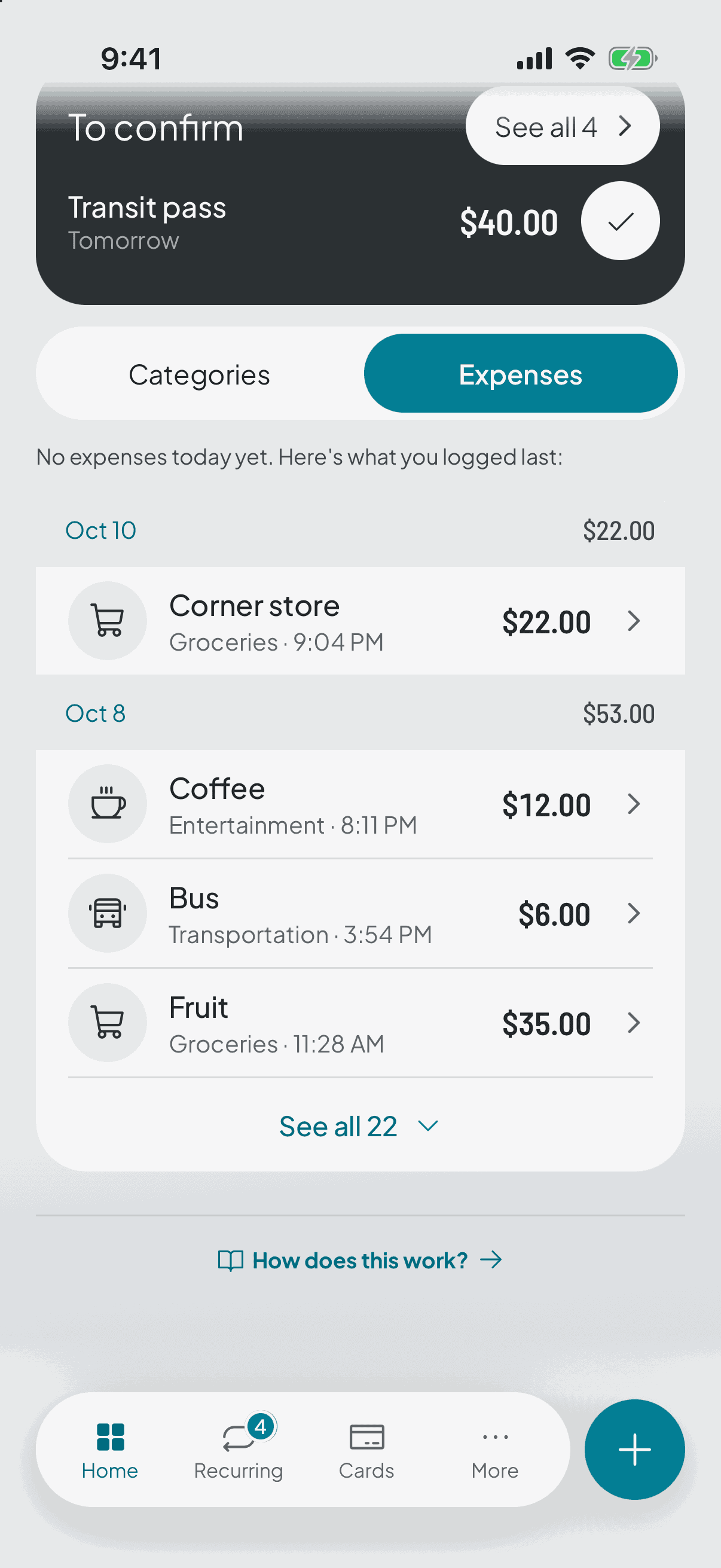
The switch under the hero turns the list from Categories into Expenses: what you logged, each with its category and the time you logged it at, and tapping one opens it so you can fix it.
It starts with today's, and one control unfolds the whole cycle right there. If you haven't logged anything today yet, instead of sitting empty it shows you the last ones — and says so first, so you don't read them as today's.
The app keeps whichever view you left selected.
- 7
And if it puts you in the red, that's fine
A category can come up short, and the app says so with its verdict — under, on track or over — without blocking you or telling you off.
You'll see it in the cycle summary when you close, and that number is raw material for the next split, not a note in your file.
The same category in the red three cycles running is almost never a discipline problem. The amount is wrong.